CSSCurrent en:Microsoft Exchange Online with OAuth2 Authentication
Aus Cryptshare Documentation
Introduction
The Cryptshare Server can send emails via Microsoft Exchange Online. Since Microsoft has discontinued basic authentication for connecting to the SMTP interface, the Cryptshare Server is now able to access this interface via OAuth 2.0 authentication.
App registration in the Microsoft Entra platform
The setup steps are subject to change at any time
Microsoft may change the exact application registration process without prior notice. We recommend that you familiarise yourself with the current process for registering an application with the Microsoft Identity Platform.
Cryptshare for OWA already configured? Separate configuration required!
If you are already using Cryptshare for OWA, it is necessary to create a separate configuration due to different permissions and processes.
- Log in to the Microsoft Entra Admin Centre. To do this, please use at least one account with the access rights of a cloud application administrator.
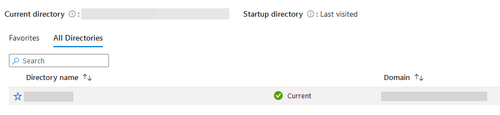
- If you have access to multiple tenants/directories, ensure that you have selected the tenant you wish to use with the Cryptshare Server by clicking on the settings cog at the top.

- Use the sidebar to open 'Entra ID' -> 'App Registrations'
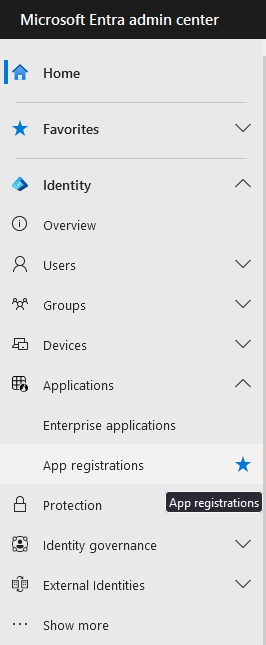
- Register a new application using the 'New Registration' button.

- Create your new application with the following settings:
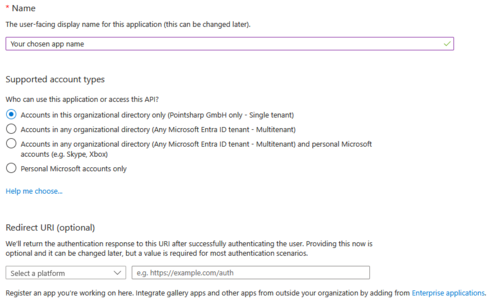
- The name of the application can be chosen freely.
- Select the account type ‘Accounts in this organizational directory only (<your company name> only - Single tenant)’.
- Do not set a redirect URI.
- Once the application has been registered, please copy the 'Application (client) ID' and the 'Directory (tenant) ID'.
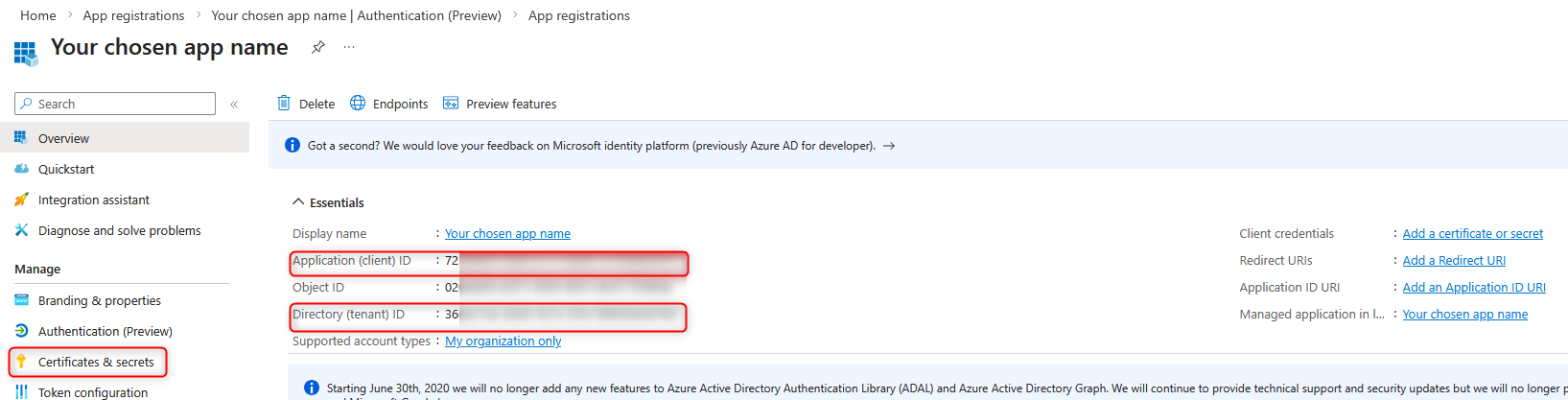
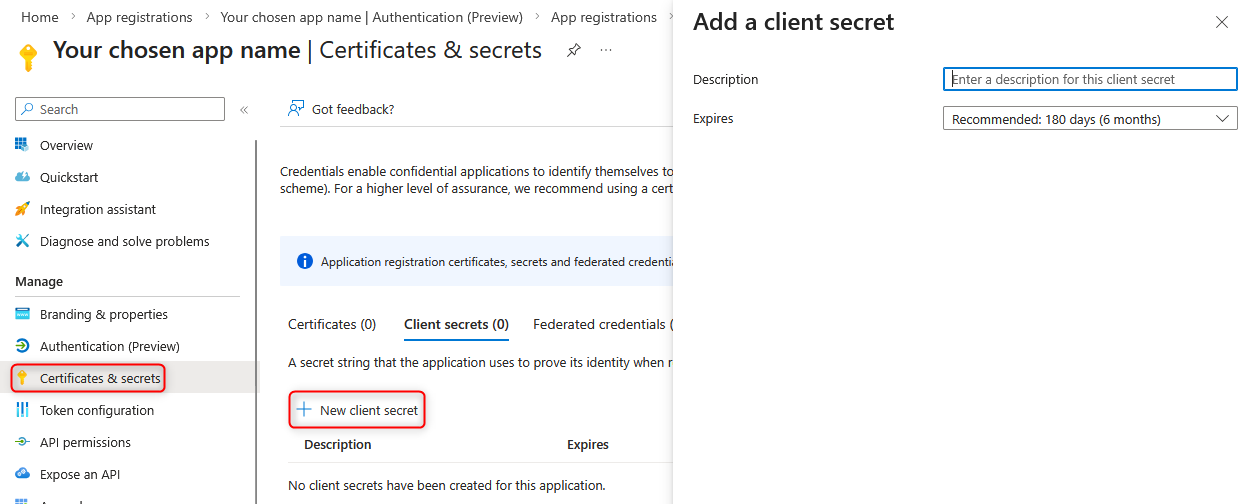
- In the sidebar of the app registration, select the menu item ‘Certificates & Secrets’, then the tab ‘Client Secrets’ and then the button ‘New client secret’.
- The description can be freely chosen.
- Select the desired Expires value. The maximum duration that can be selected is two years. Please note that after this period has expired, you must create a new client secret and store it in the Cryptshare Server so that the Cryptshare Server will still be able to send emails after the expiry date. We recommend setting up a calendar entry or other reminder.
- Then click on the ‘Add’ button.
- On the next page, you will see the secret client key that has been created. Copy the string displayed in the 'Value' column (not the Secret ID). The secret client key is only displayed once and cannot be viewed again after leaving the page.
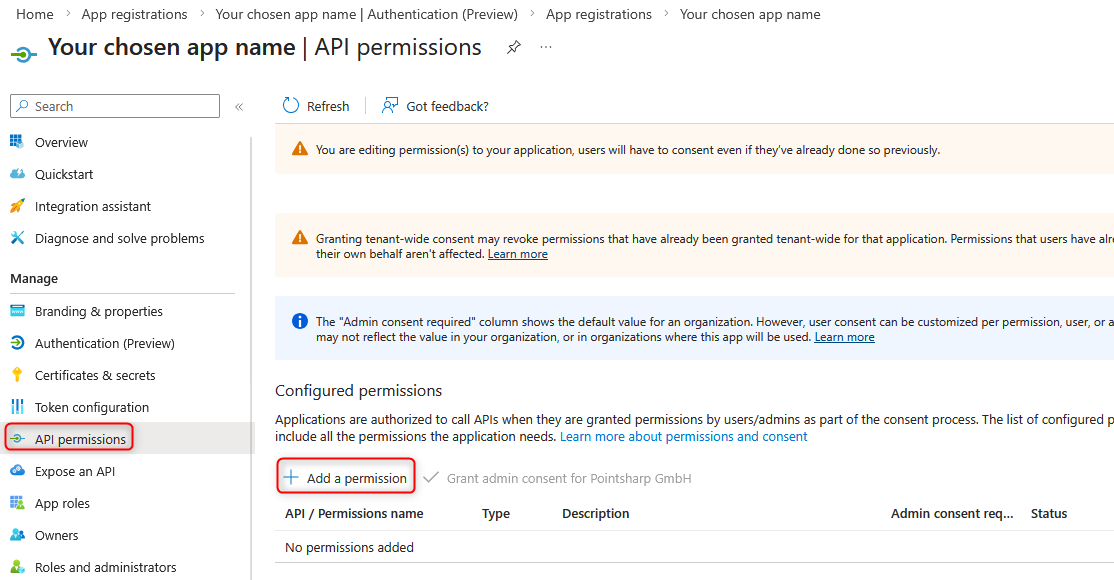
- Next, select the ‘API permissions’ menu item in the sidebar of the app registration.
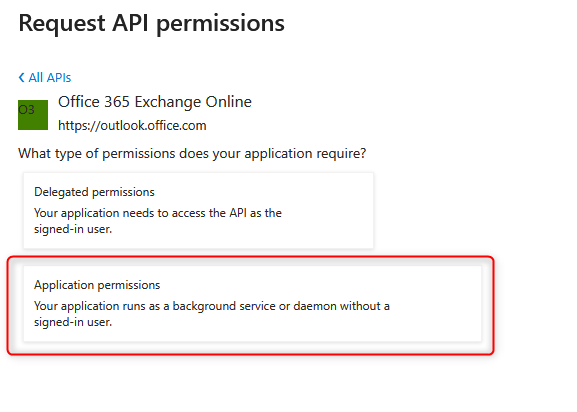
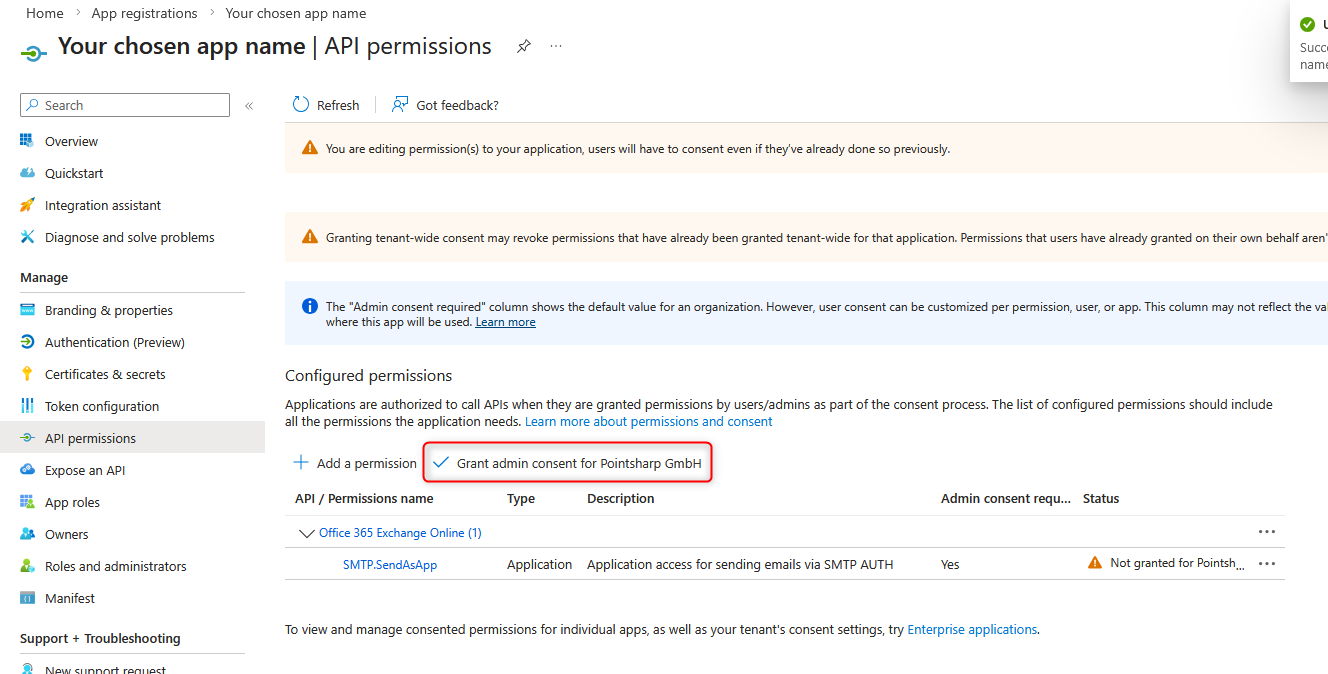
- Use the ‘Add a permission’ button, then select the ‘APIs my organization uses’ tab, then choose 'Office 365 Exchange Online', then 'Application permissions' and add the 'SMTP.SendAsApp'so that they are displayed in the list.
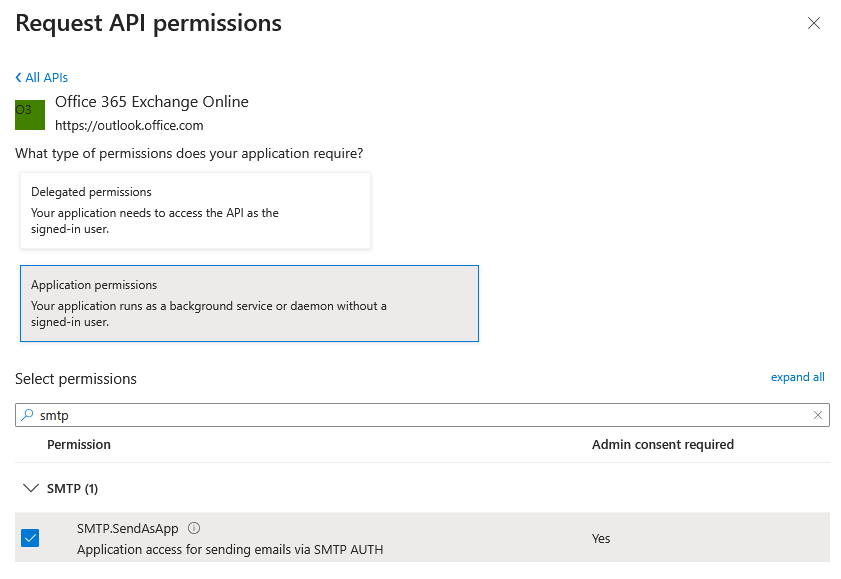
- Then click 'Grant admin consent for <your company name>' and confirm with 'Yes'.
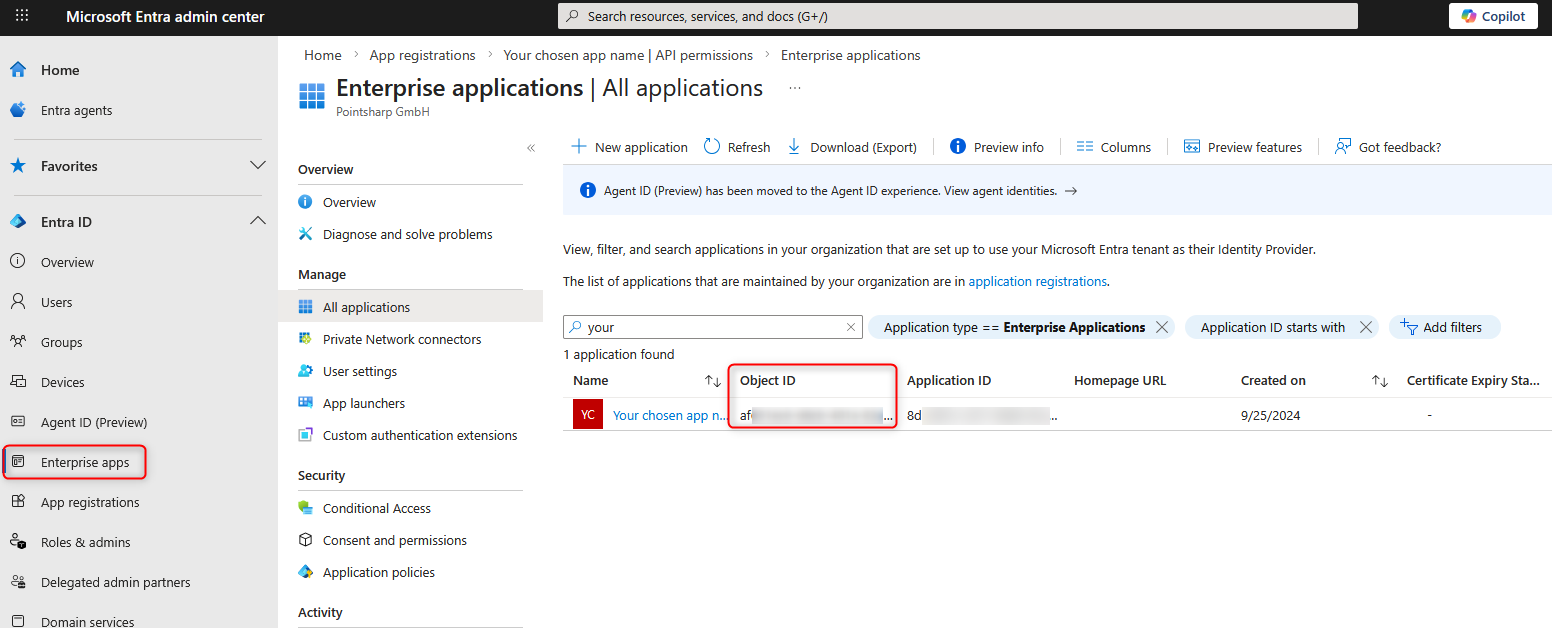
- Go to the 'Enterprise apps' section and copy the value from the 'Object ID' column of your newly added application. (Please note: this object ID is different from the object ID found in the App registrations menu item. The object ID from the Enterprise App menu item is required for one of the subsequent steps.)
- Now continue with the configuration in Exchange Online PowerShell.


App configuration in Exchange Online PowerShell
The setup steps are subject to change at any time
Microsoft may change the exact application registration process without prior notice. We recommend that you [https://learn.microsoft.com/en-us/exchange/client-developer/legacy-protocols/how-to-authenticate-an-imap-pop-smtp-application-by-using-oauth#use-client-credentials-grant-flow-to-authenticate-smtp-imap-and-pop-connections to familiarise yourself with the current process for registering an application with the Microsoft Identity Platform.
- Open a PowerShell console on your local Windows PC.
- Install and connect to Exchange Online PowerShell:
- The Exchange Online PowerShell scripts have not been digitally signed by Microsoft. Therefore, it is necessary to allow unsigned scripts to run:
Set-ExecutionPolicy -ExecutionPolicy Bypass -Scope Process. - Install the ExchangeOnlineManagement modules:
Install-Module -Name ExchangeOnlineManagement - Make the installed modules available in the current PowerShell session:
Import-module ExchangeOnlineManagement - Connect to Exchange Online using your directory (tenant) ID from step 6 above:
Connect-ExchangeOnline -Organisation <Directory ID> - In the window that opens, log in to Microsoft Entra.
- The Exchange Online PowerShell scripts have not been digitally signed by Microsoft. Therefore, it is necessary to allow unsigned scripts to run:
- Create a new service principal for the application using the application (client) ID from step 6 and the object ID from step 11:
New-ServicePrincipal -AppId <application ID> -ObjectId <object ID> - Then list all existing service principals with
Get-ServicePrincipal | fland find the entry whose AppId (application ID) and ObjectId (object ID) are identical to those used in the previous step. From this entry, you then need the value of the service principal ID specified under 'Sid'. - Now assign the necessary permissions to the email address that will be used to send Cryptshare emails:
Add-MailboxPermission -Identity "<sender email address>" -User <service principal ID> -AccessRights FullAccess. - Now continue with the configuration on the Cryptshare server.

- Connect to the Cryptshare administration interface.
- Navigate to the System Settings -> Mail Server menu.
- There, select the value 'Microsoft Exchange Online with OAuth2 authentication' as the 'SMTP server type'.
- Ensure that the email address for which the mailbox permission was previously created is entered in the 'Sender Address' field.
- Ensure that the checkbox next to 'Allow using individual sender addresses.' is unchecked.
- In the 'Directory (tenant) ID' field, enter the value of the 'Directory (tenant) ID' from step 6.
- In the 'Application (client) ID' field, enter the value of the 'Application (client) ID' from step 6.
- In the 'Client Secret' field, enter the value of the 'Client Secret' from step 7.
- Click 'Save changes'.
- You can send yourself a test email by entering any email address in the 'Test with address' field and clicking 'Send test message'.
- Then make sure that the same 'Sender Address' is also defined in the policy rules and that the 'Allow using individual sender addresses' checkbox is not selected.