CSNCurrent en:Update to version 3.0.1
About the update process
The preconfigured CS4N application V3.0.x (NSF) included in the update package is installed on your Domino server and the customer-specific settings are subsequently adjusted or imported from the old Cryptshare for Notes application.
The update description is for the update to version 3.0.x.
If INI variables are distributed to clients via policy, please note that since version 2.14.0, the naming of these INI variables has been standardized and has been prefixed with CS4N:
INI-Variablen vereinheitlicht wurde und seither mit dem Präfix CS4N geführt werden:
- aus BEFINE_CS4LNServer becomes CS4N_Server
- aus BEFINE_CS4LNApp becomes CS4N_App
- aus BEFINE_ContentLanguage becomes CS4N_ContentLanguage
Required files
| Filename | Function | File format |
|---|---|---|
| -T-Cryptshare Log V3.0.x.ntf | CS4N Log Template (ntf) | Notes Template ODS 52 |
| -T-Cryptshare Forwarder V3.0.x.ntf | CS4N Forwarder Template (ntf) (optional) | Notes Template ODS 52 |
| -T-Cryptshare Library V3.0.x.ntf | CS4N Library (ntf) (optional) | Notes Template ODS 52 |
| Cryptshare V3.0.x.nsf | Preconfigured CS4N application (The new notification texts within the application are relevant for the update) | Notes Application ODS 52 |
Update checklist
This checklist is intended as a guide for the administrator to update the "Cryptshare for Notes & Domino" (CS4N&D) applications to version 3.0.x step by step.
- In order for CS4N&D to work with the Cryptshare WEB Server via the REST API, the entry api.rest.methodOverride=true must be added to the cryptshare.properties file on the Cryptshare WEB Server. However, this file is not present on the Cryptshare WEB Server by default. It must then be created in the installation directory. The Cryptshare WEB Server must then be restarted.
- Unzip the ZIP file (update package) and perform a fixup, compression, and signing of all Notes templates (*.ntf).
- Create a backup copy of the currently productive CS4N&D application on the Domino server (Notes menu: "File -> Application -> New Copy...").
- Then delete the current productive CS4N&D application.
- Re-copy the Cryptshare V3 application (NSF) to the location of the previously deleted Cryptshare NSF. (With the same file name as the old CS4N&D version!)
- In the Notes Administrator Client, perform a fixup, compression, and signing with the default settings on the new CS4N&D application.
- Start the new CS4N&D application.
- Start the data import to adopt the configuration settings, etc., of the previously backed up CS4N&D application. (Notes menu: Actions → Cryptshare for Notes → Data import from an external CS4N application...) or alternatively from the Cryptshare for Notes & Domino configuration using the button: Actions → Import data from external application...

Select the three options: CS4N Configuration (without email notification texts), Status Document and ACL (Access Control List) and confirm with OK.

In the following dialog, select the cryptshare.nsf file that you received from us in the update package.

Confirm the following security prompt. The data import from the 'old' Cryptshare for Notes application will then begin.
After successful import, the following dialog appears:

Now open the configuration of your Cryptshare for Notes installation to make the manual settings.
The JAVA file is called: "Cryptshare4Notes-domino??????.jar"
To delete the file, the Domino server must be shut down. After deleting the file, the Domino server can be restarted.Tab "Cryptshare Server"
- Due to the API update (switch from Java API to REST API in version 3.x), the Client ID required for authentication between the Domino server and the Cryptshare WEB server must be recreated. Procedure:
- Recreate the Client ID. Depending on the default settings on the Cryptshare server page, the
 or
or  button will be displayed. Click the button to request the Client ID from the Cryptshare WEB server again.
 - Use the button
 to copy the Client ID to the clipboard.
 - Next, add the Client ID to the Cryptshare WEB server administration area in the "Additional Products -> Cryptshare for Notes" tab and save it.
- Use the button
 in the Cryptshare for Notes application to test the connection to the CS WEB server.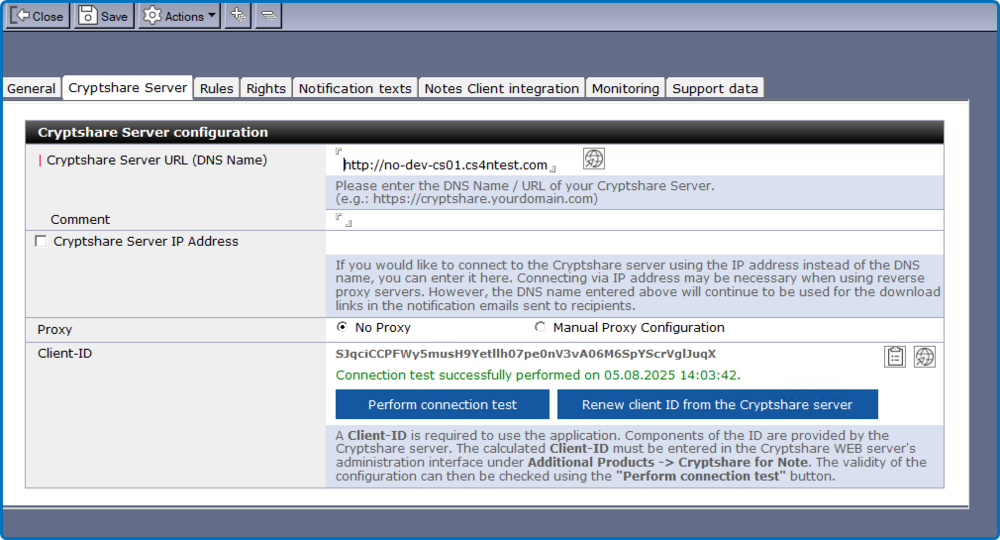


- Sub-tab "General → Basic Settings → Encryption File Upload"
- Check whether the automatic upload agent is enabled and review its settings.
- Sub-tab "General → Domino Server Settings"
- Update the displayed Domino server data.
- Tab "Rules → Manually Created Email"
- Set the "Sending Type to Internal Recipients" field. If the "Direct Email" option is used, any existing Domino server rule must be adjusted. (See rule-based mode.)
- If necessary, make new settings in the "Password Options for Manually Created Emails" field.
- Tab "Permissions → Email Storage"
- If necessary, make new settings in the "Email Storage in Personal Mailbox"
- Tab "Notification Texts"
- Adapt the notification texts to your corporate identity if necessary.
- Email to Sender
- In the "Send on behalf of" field, enter the sender name of the emails to be sent by CS4N&D to the creator of the email to be transferred.
- If you have made individual adjustments (e.g., company logo) to the email texts for the sender or recipient of the emails, maintain these.
- Email to Recipient
- In the "Position of Email Template" field, you must set the positioning of the text block in the email to be sent.
- Tab "Error Handling → Support Data"
- Enter the required information in the input fields.
- Delete the unnecessary question block about error messages (DE or EN).
- Finally, sign all CS4N applications again for security reasons.
Update the following applications using the provided templates.
- Update the Cryptshare Log application.
- Update the application using the provided template. No settings need to be made in the application.
- Delete all log entries from the CS4N Log application. Navigation entry: "Delete all log entries."
- Update the Cryptshare Forwarder application
- Only if you are using it. Update the application using the provided template. No settings need to be made in the application.
The form field name for the encrypted password provided in emails has changed from "UserPassword" to "CSUserPassword." If you set/use the field in third-party applications, the field name must be changed to "CSUserPassword" in those applications.